API keys
Get your project key, rotate it with an overlap window, or revoke it immediately in a breach.
Each project has exactly one API key. There is no separate create step — the key is minted when the project is created, and Rotate Key is how you get a new one. A key carries a single scope fixed at mint or rotation — full (the default) or read-only — and there are no live/test environments; one project, one key, one budget.
Get your first key
You need a verified Solwyn account. About 2 minutes. The Free tier is fine — enforcement starts in alert-only mode, so calls are never blocked.
Sign up
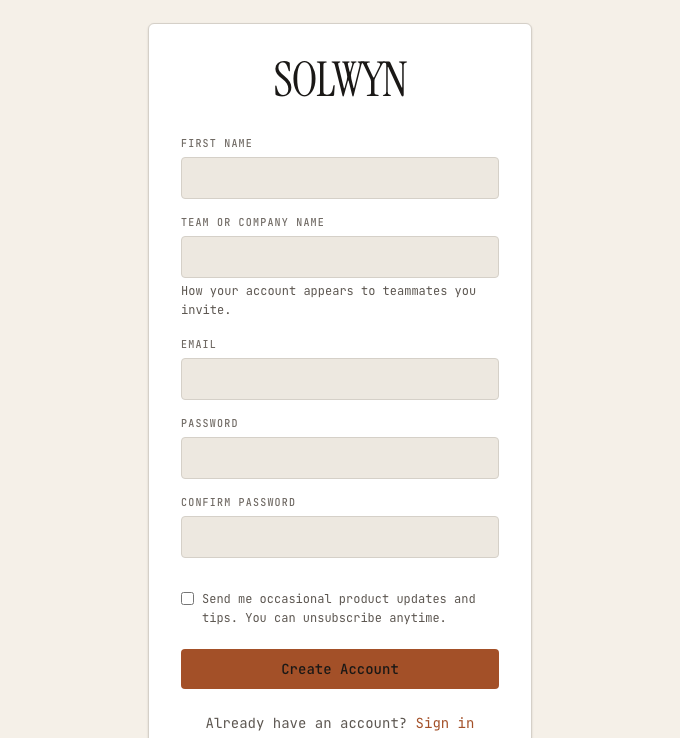
Enter your first name, your team or company name, your email, and a password. Your team name becomes how the account appears to anyone you invite later.
Verify your email
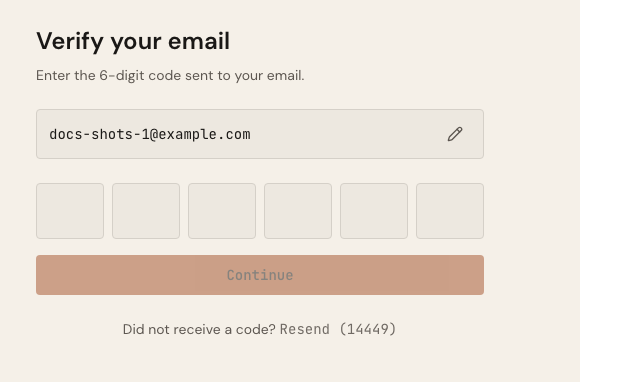
We email a 6-digit code — there is no link to click. Type the code into the six boxes and continue. You can resend the code after a short cooldown.
Create your first project
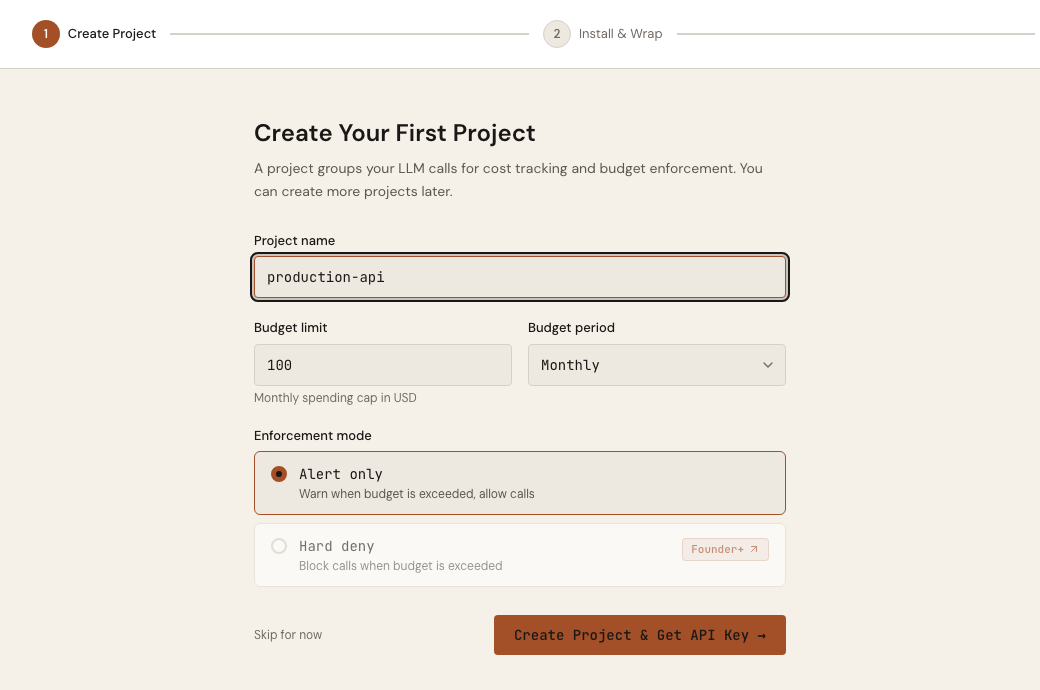
The onboarding wizard's first step sets the project name, budget limit ($100 by default), period (Monthly by default), and enforcement mode — all in one form. Creating a project and setting its budget is a single action.
Every tier can select Hard deny — the Free tier includes one hard-cap project. On Free, the period is monthly only. See Budgets for what each mode does at the limit.
Copy your key — it is shown once
When the project is created, the full key (sk_proj_ followed by 64 hex
characters) appears once. Use Copy for the raw key, or Copy full .env
to grab a ready-to-paste SOLWYN_API_KEY=… line.
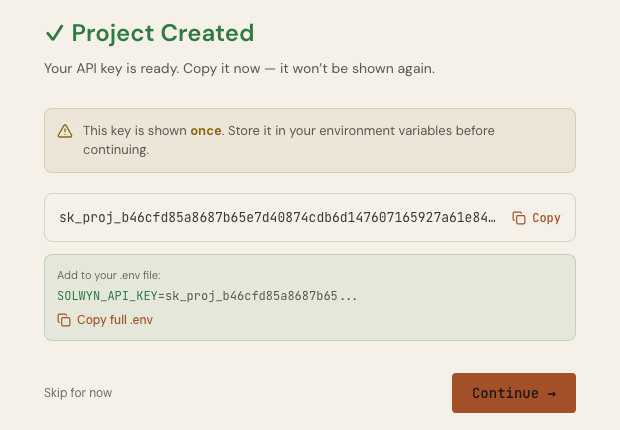
The full key is shown once, at creation. Store it now (for example as
SOLWYN_API_KEY in your environment) before continuing. Afterwards it is
permanently masked — the first eight characters, an ellipsis, and the last
four (sk_proj_…abcd).
The Keys tab
Open the project and select Keys. It shows the masked key — the first eight characters and the last four, never more — with its created and last-used metadata, plus the two lifecycle actions: Rotate Key, and Emergency revoke… in the overflow menu.
A key's scope is fixed when it is minted or rotated — full (the default) or read-only. If the SDK is configured with a read-only key, it surfaces that cleanly (SDK v0.3.0+) instead of failing opaquely: it logs a single diagnostic, and on the SDK's default fail-open setting your provider calls keep working while budget enforcement and dashboard reporting stop — Solwyn Cloud rejects every SDK write from a read-only key with the same structured error, so budget checks, usage reporting, and breaker-state reports all stop together. See Troubleshooting to fix it by swapping in a full-scope project key.
Rotate a key
Rotation mints a replacement and keeps the old key valid for an overlap window, so you can cut over without downtime.
- On the Keys tab, select Rotate Key.
- Pick the overlap window: Within the hour (1h), Today (24h), This week (72h — the preselected default), or Slow rollout (7d).
- Rotate. The replacement key is revealed exactly once — store it before closing.
- Deploy the new key. The old key keeps working until the window ends; the
status badge reads
rotating · old key expires in {countdown}and a note shows the exact expiry time.
While a grace window is open, Rotate Key is disabled — one rotation at a
time. The CLI drives the same mechanism with
solwyn keys rotate --grace-seconds.
Emergency revoke
For a credential breach, skip the overlap entirely.
- On the Keys tab, open the overflow menu and select Emergency revoke….
- Type the project's name to confirm — the dialog warns that the current key stops working immediately and any SDK still using it will fail.
- Revoke. The old key is dead the moment you confirm; the replacement is revealed once, in the same non-dismissible panel as a rotation.
Use Rotate Key with an overlap window unless the key is compromised — an emergency revoke takes down every deployment still holding the old key.